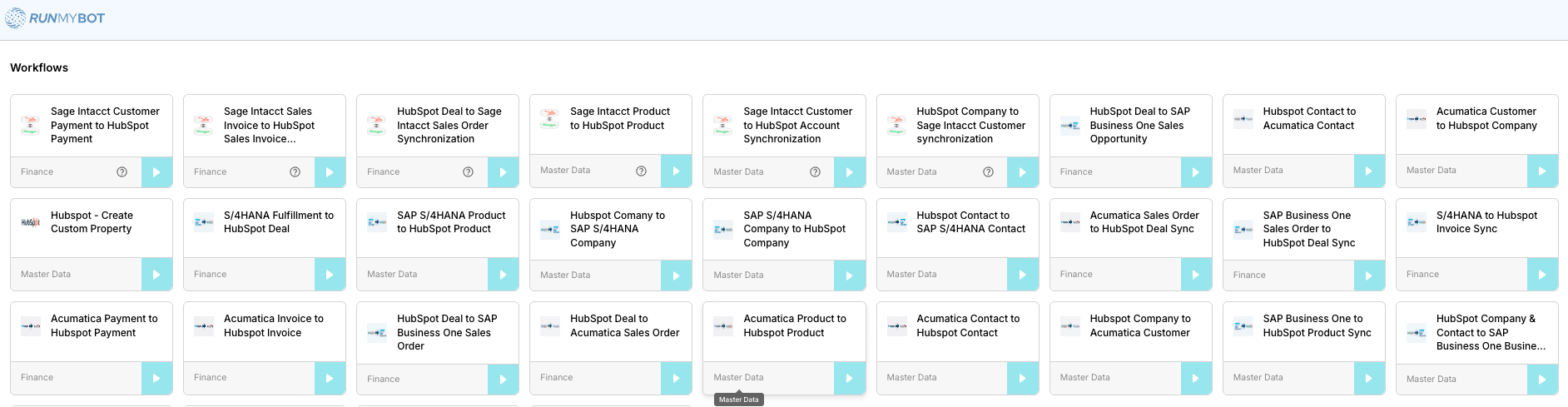
HubSpot Marketplace Installation & Authentication Flow
Standard operating procedure and technical sequence for the RUNMYBOT integration with HubSpot.
A Overall Flow Sequence
The sequence below illustrates the chronological interactions between the User, HubSpot Marketplace, and the RUNMYBOT integration engine.
B Step-by-Step Technical Guide
Follow the sequential stages of the installation process detailed below.
Start the Installation
The user initiates the installation by clicking the Connect (or Add) button from the HubSpot Marketplace.
This redirects the user to HubSpot's authentication page and begins the OAuth 2.0 authorization flow.
Authenticate with HubSpot
The user logs into HubSpot and grants application access permissions. This stage also handles onboarding profiles for first-time users.
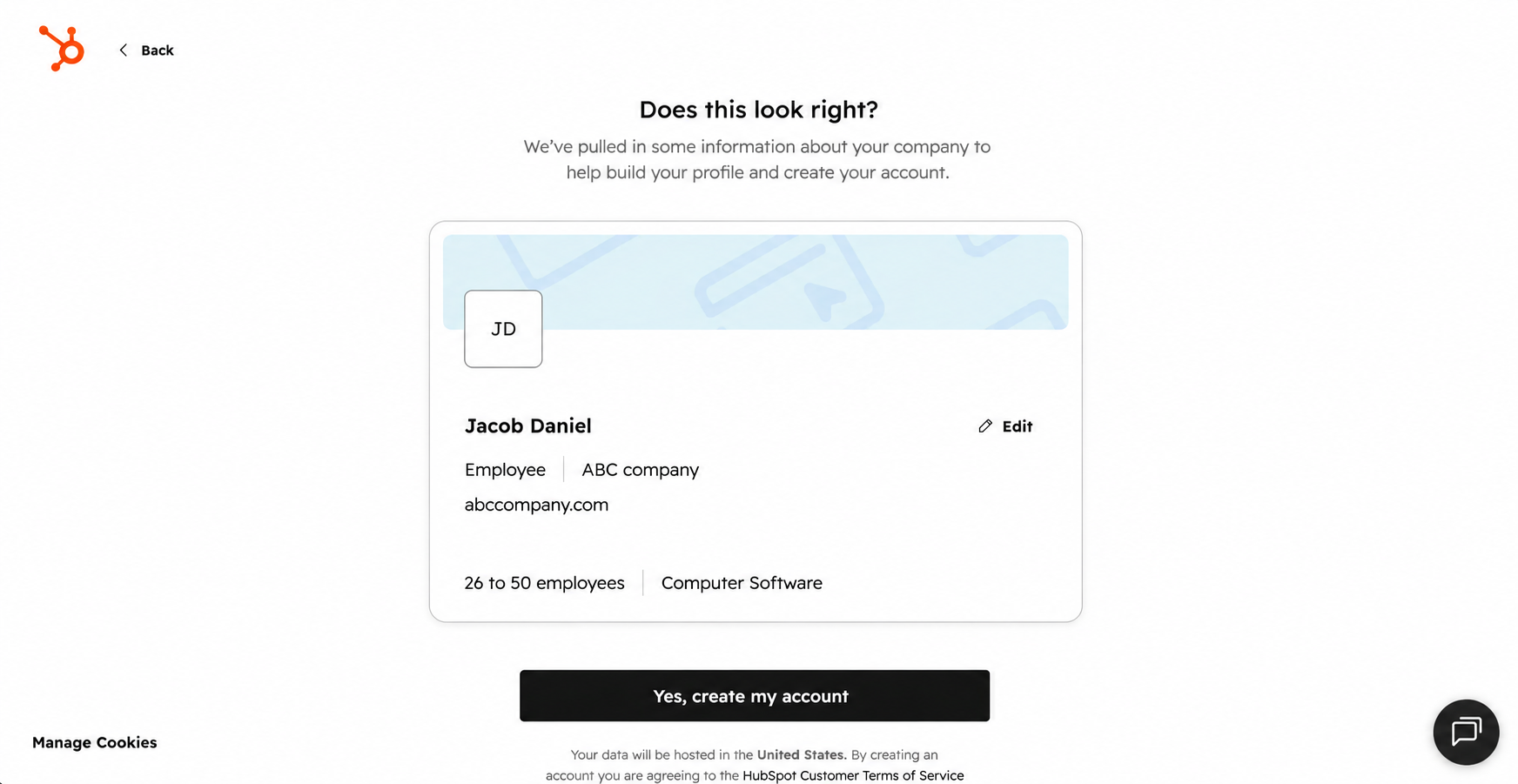
If the user is creating a HubSpot account for the first time, HubSpot displays the company profile page. This page contains retrieved company information (Name, Company, Website, Industry, Company Size) which the user verifies and submits by clicking Yes, create my account.
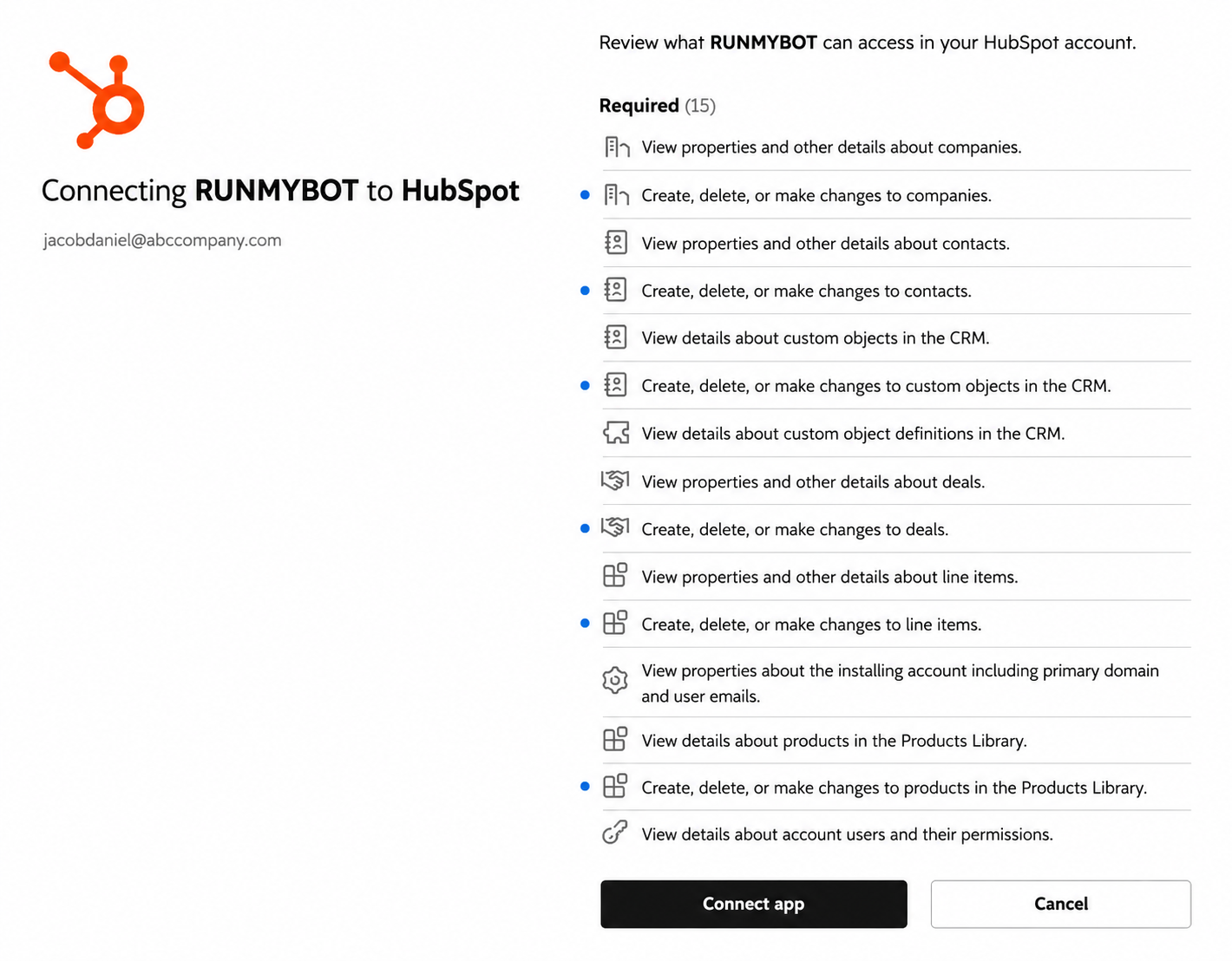
HubSpot displays the permissions requested by RUNMYBOT® (Contacts, Companies, Deals, Products, CRM Objects, etc.). The user reviews and clicks Connect app.
After permissions are granted, HubSpot redirects the browser to the application's callback URL, returning a temporary Authorization Code to continue the OAuth process.
Select HubSpot Account
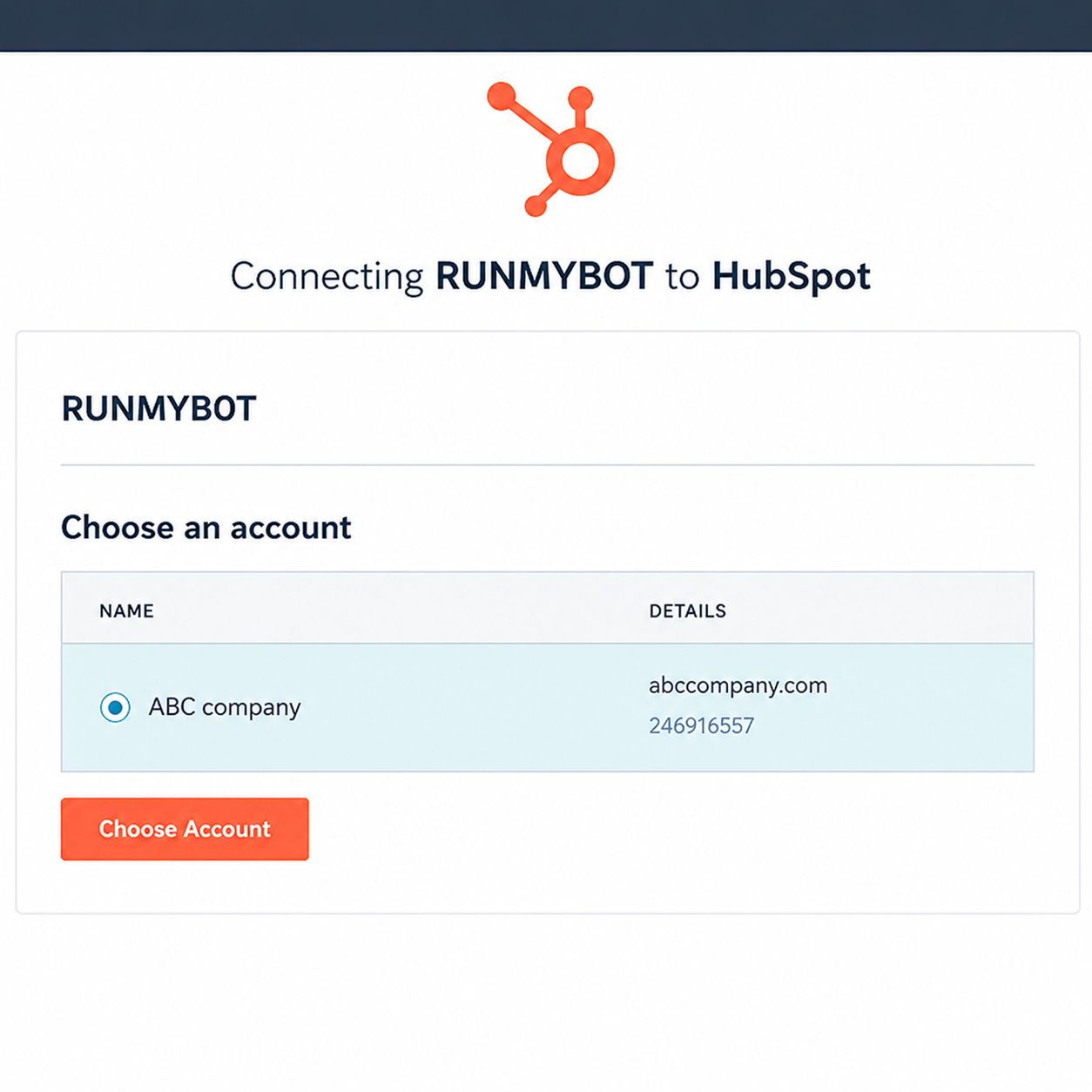
If the authenticated user has access to multiple HubSpot portals, HubSpot displays the available accounts.
The user selects the HubSpot account that should be connected to RUNMYBOT®.
- Select the desired HubSpot account.
- Click Choose Account.
Generate OAuth Access Token
RUNMYBOT® exchanges the Authorization Code with HubSpot.
HubSpot validates the authorization request and returns:
- OAuth Access Token
- Refresh Token (if applicable)
- Token Expiration Details
- Authentication Metadata
These credentials are securely stored for future API communication.
Retrieve HubSpot User and Portal Information
Using the generated access token, RUNMYBOT® retrieves:
- Authenticated HubSpot user information
- HubSpot Portal (Account) information
The Portal ID uniquely identifies the customer's HubSpot account.
Identify or Create Customer, User
The system maps the authenticated portal and email address to appropriate database records.
RUNMYBOT® searches for an existing customer using the HubSpot Portal ID. If a matching customer exists, that record is reused. If no match exists, a new customer record is created and automatically associated with the ActionFi partner.
RUNMYBOT® checks whether a user already exists using the authenticated HubSpot email address:
- Existing User: Reuses the account, retains profile details and customer associations, and skips credential creation.
- New User: Creates a new user profile, associates them with the customer record, assigns a default role, and emails generated login credentials.
This guarantees a one-to-one mapping between a HubSpot Portal and a customer in the RUNMYBOT®.
Assign HubSpot Workflows
RUNMYBOT® identifies all HubSpot-specific system workflows available within the platform.
These workflows are automatically assigned to the customer's account, ensuring immediate access to all supported HubSpot integrations.
Create or Update HubSpot Connection
A HubSpot connection is created (or updated if one already exists).
RUNMYBOT® securely stores the OAuth authentication details required for future communication with HubSpot APIs.
Redirect to HubSpot Workflows
After establishing the connection, the platform creates a secure application session and auto-authenticates the user.
Finally, the user is redirected to the HubSpot Workflows page within the RUNMYBOT®, where they can immediately begin using the integration.
- HubSpot authentication is complete.
- Customer identification is complete.
- User verification is complete.
- Required workflows are assigned.
- HubSpot connection is active.